
TL;DR: Sequill is a free SQLite editor and visual schema designer that runs entirely in your browser. It uses the real SQLite compiled to WebAssembly and keeps your databases on your device, so nothing is uploaded. There's no account to create, it works offline, and it exports to MySQL, PostgreSQL and MariaDB.
If you've ever needed to peek inside a .sqlite or .db file, you know the drill: install a desktop app, or upload your file to some website and hope it isn't kept somewhere. I wanted something simpler, so I built Sequill.
Sequill lets you browse, edit, query and visually design SQLite databases entirely inside your browser tab. Your file never leaves your device.
Why Sequill?
- 100% free. No paid tier, no trial, no feature gates.
- 0 bytes uploaded. There is no server behind the app. Your database stays on your device.
- No account. Open the page and start working.
- Works offline. After your first visit, the whole app (including the database engine) is cached, so it runs with no connection at all.
- Installable. Add it to your desktop or phone and open it like any other app.
- The real SQLite. It runs the official SQLite 3.54 build compiled to WebAssembly, so files it writes open in any other SQLite tool, and vice versa.
- Move to a server database anytime. Export to MySQL, PostgreSQL or MariaDB.
- Works on phones. The editor has its own mobile layout, with your tables tucked into a drawer.
Sequill is two tools that share the same set of databases: the SQLite Editor and the Schema Designer. Open a file in one and it's instantly available in the other.
Tool 1: The SQLite Editor
The editor is a fast data grid sitting directly on top of the real database. Sorting, filtering and searching all run inside SQLite itself, not in JavaScript, so results are always accurate.
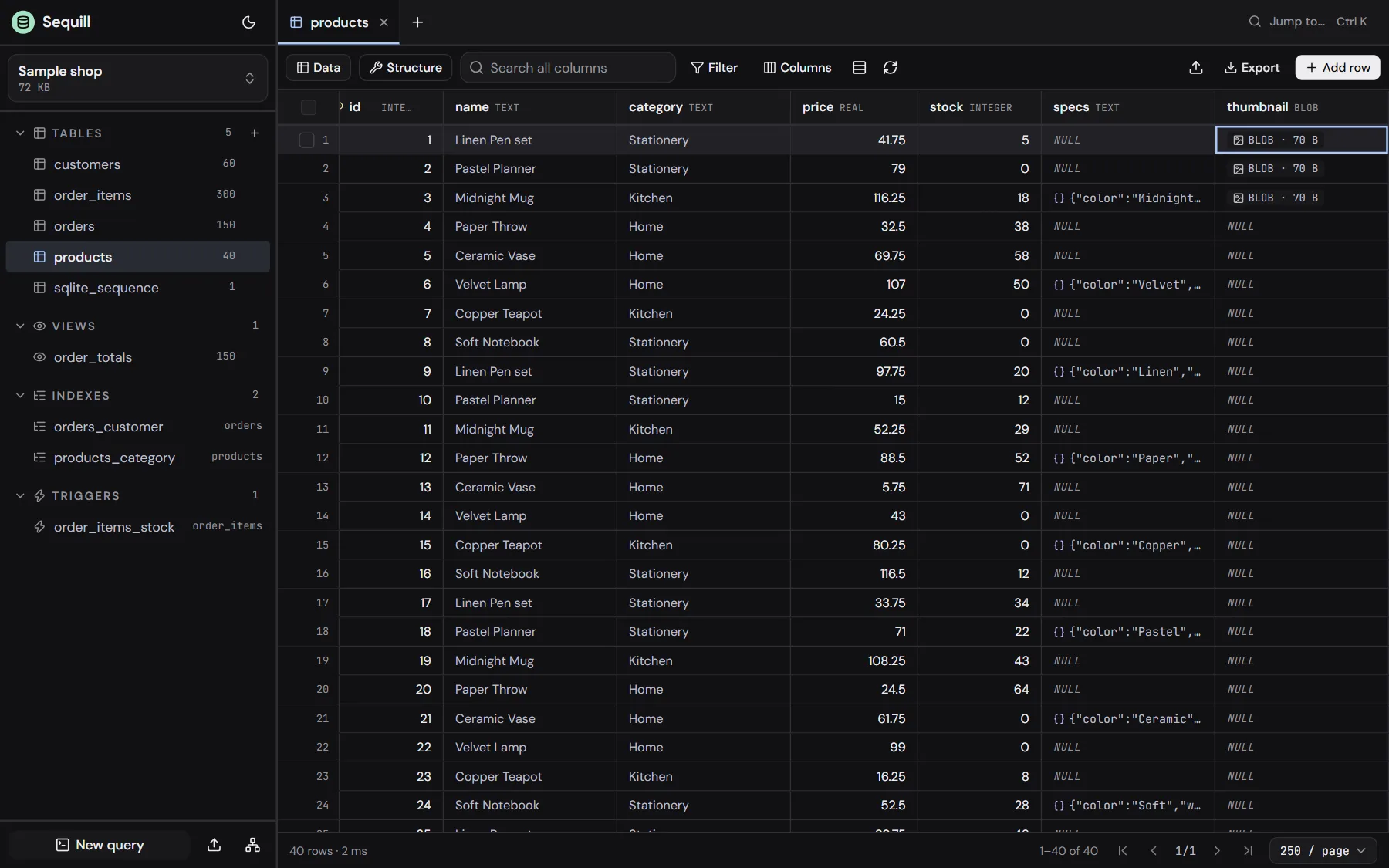
Browse and explore
- Virtualised rows so large tables scroll smoothly.
- Multi-column sort and search across every column.
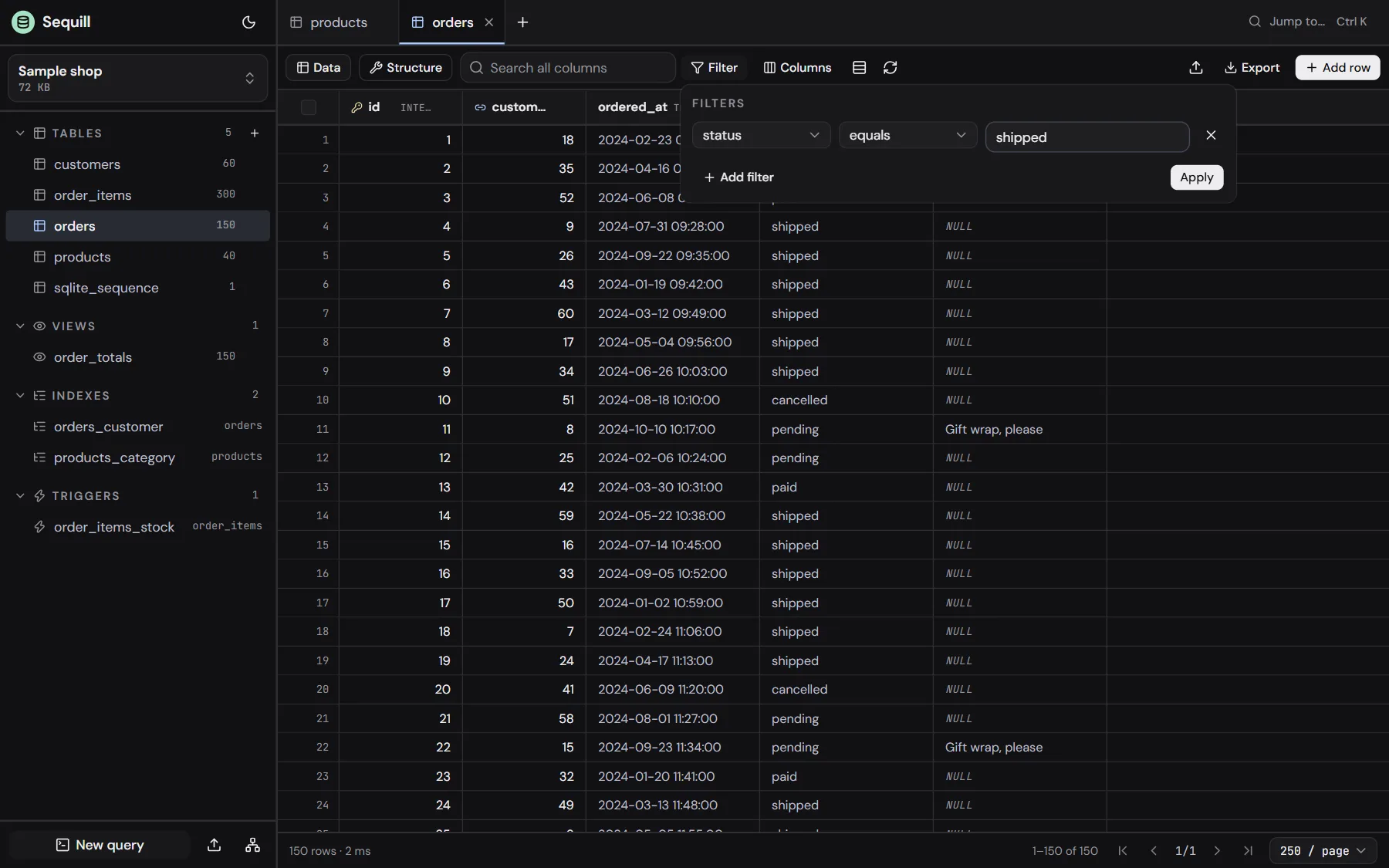
- Filters with 15 conditions, combined with AND or OR.
- Pin and hide columns to focus on what matters.
- Follow foreign keys to jump from a row to the record it references.
- Row inspector for viewing a full record at once.
- BLOB preview and JSON formatting for messy column data.
- A sidebar listing every table, view, index and trigger.
Edit in place
- Double-click a cell, or just start typing, to change a value.
- Set NULL (or any value) with one action.
- Paste straight from a spreadsheet into the grid.
- Nothing is written until you save. Pending edits wait behind a single Unsaved badge, so you can review before committing.
Write SQL
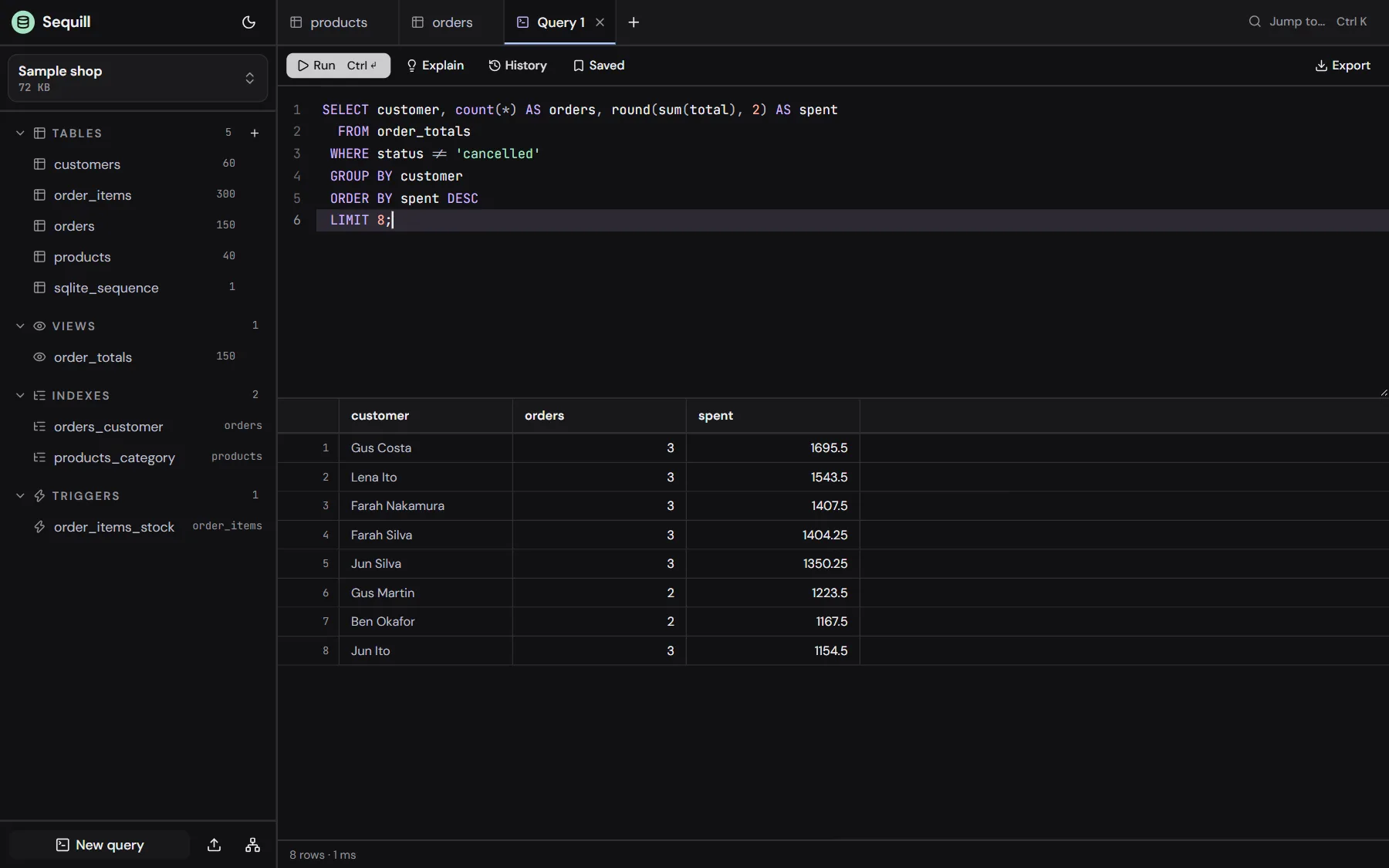
- A full SQL console with autocomplete that knows your tables and columns.
- Press
Ctrl+Enterto run the whole script or just the selected part. - View query plans to see how SQLite executes your query.
- Keep saved queries for things you run often.
- Every query is timed, with the row count and duration shown under the grid.
Import and export
- Open existing .sqlite and .db files, or start with an empty database.
- Import CSV and JSON into tables.
- Export any table, filtered view or query result as CSV, JSON or SQL.
- Download a full SQL dump of the entire database.
- Export to other databases. Generate SQL for MySQL, PostgreSQL and MariaDB, so you can prototype in SQLite and move your schema and data to a server database when you're ready.
- Not sure where to start? Load the built-in Sample Shop database (customers, products, orders and order items) and play around.
And from anywhere, press Ctrl+K to jump to any table, view or action from one search box.
Tool 2: The Schema Designer
The schema designer draws your database as a diagram: every table as a card, every foreign key as a line between them. But it's not just a viewer, you can design and change your schema visually.
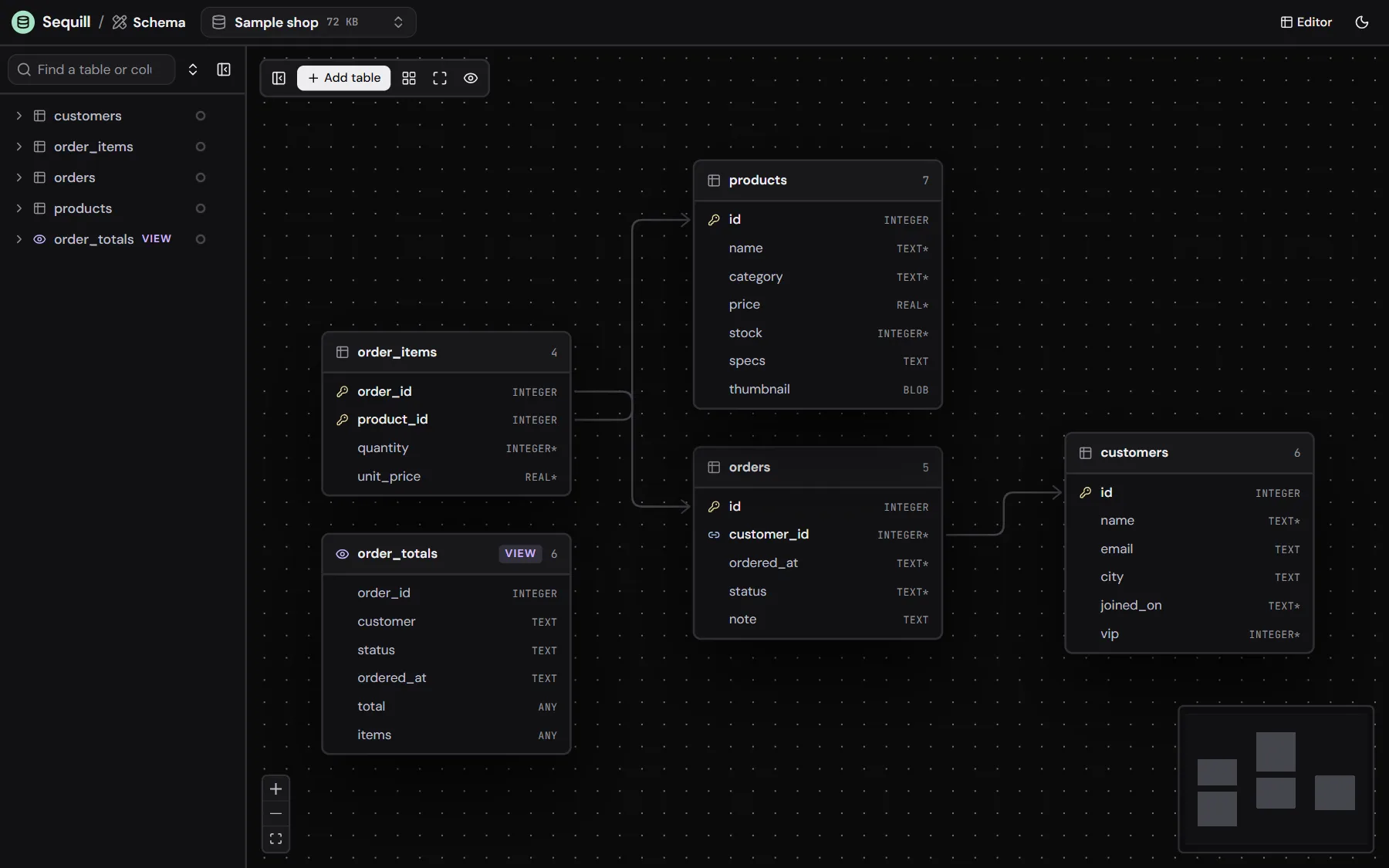
See your whole database
- A diagram of every table with its columns and types.
- Auto-arrange lays everything out cleanly in one click.
- Lines follow the tables. Drag a table around and each relationship line automatically picks the sides that face each other.
- Focus on one table to see just it and its relationships.
- Colour-code tables (six presets, or any colour you want) to group related parts of your schema.
Design visually
Adding a new table takes four steps:
- Add a table and give it a name.
- Add its columns. New columns show up in green so you can see what's changed.
- Drag from a column to another table to create a foreign key link.
- Save. All changes are applied in a single transaction.
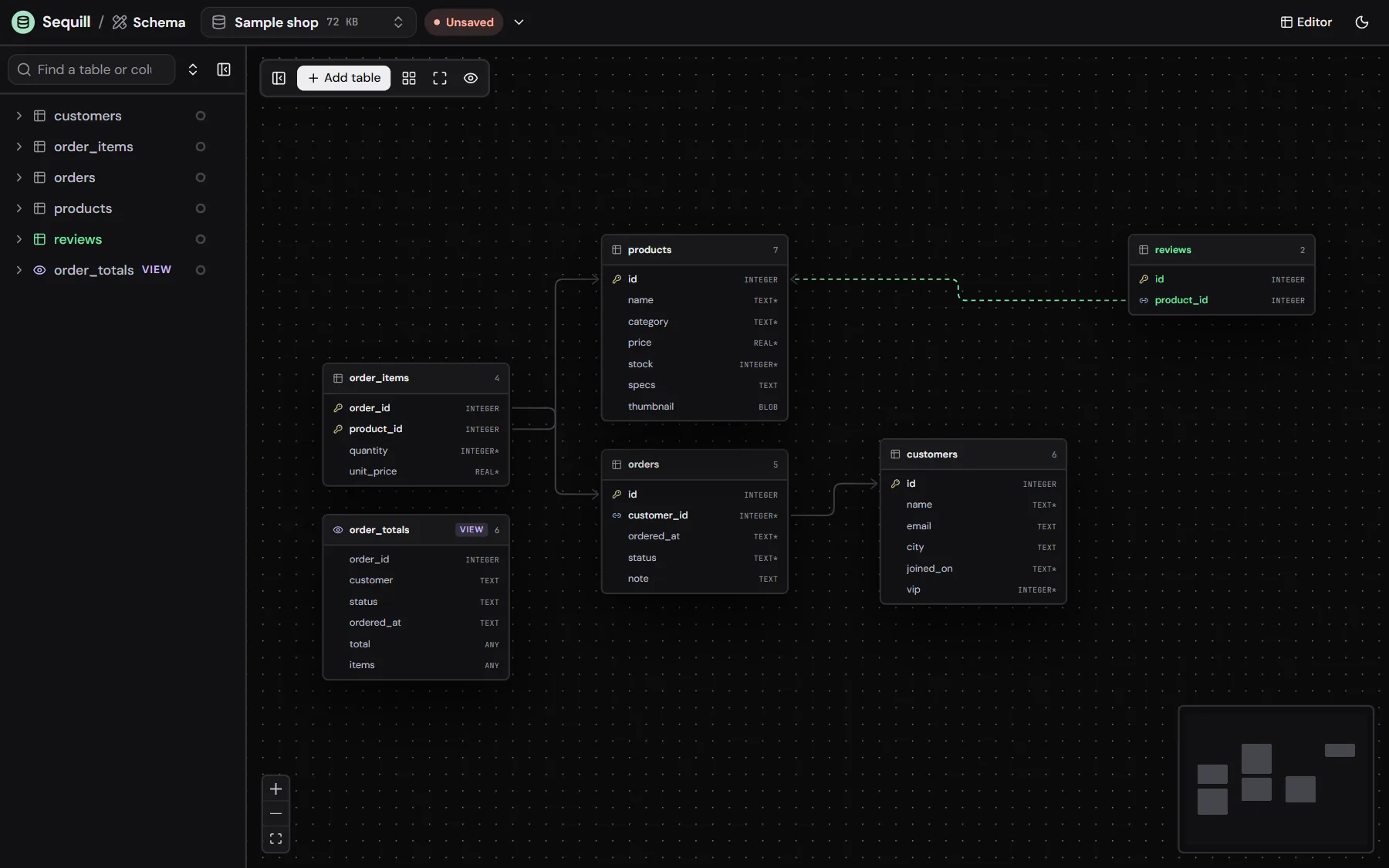
Safe by design
- Drafts stay in the open database. Unsaved designs are kept as a draft for that database, so you can come back later.
- Safe table rebuilds. SQLite can't alter every part of a table in place, so when a change needs it, Sequill rebuilds the table safely for you.
- Save as a new database if you want to experiment without touching the original.
Where does my data live?
When you open a file, Sequill copies it into your browser's Origin Private File System (OPFS), a private storage area that belongs to the site, on your device. Your original file is never modified.
A few honest notes:
- If you clear the site's data, your databases go with it. Sequill asks the browser for persistent storage to reduce automatic clean-ups, but always download a copy (or a SQL dump) of anything you can't afford to lose.
- One tab at a time. The browser lets only one tab hold the database storage, so a second tab shows a message until the first one closes.
- Size limit is your browser's storage quota for the site, usually a large share of your free disk space. Very large exports are limited by memory.
How I built it
Sequill has no backend at all. It's a set of static files, and everything happens in the browser. Here are the main building blocks.
1. SQLite compiled to WebAssembly
The core is the official SQLite WASM build (version 3.54). Because it's the genuine SQLite engine rather than a reimplementation, every query, filter, sort and schema change behaves exactly as it would in native SQLite, and the files are fully compatible with other tools.
2. A background Web Worker
SQLite runs inside a Web Worker, off the main thread. This keeps the interface smooth: scrolling the grid, typing in the console and dragging tables on the diagram never freeze, even while a heavy query is running.
3. Origin Private File System (OPFS) for storage
Databases are persisted using the Origin Private File System. OPFS gives the worker fast, file-like access to storage, which is what lets SQLite read and write real database files in the browser instead of holding everything in memory. It's also why only one tab can own the database at a time: the storage handle is exclusive.
4. Reading files without the engine
The "Try your own file" section on the landing page reads a database's header and first page directly, without loading the SQLite engine. It parses SQLite's file format to show the page size, page count, text encoding, journal mode, the SQLite version that last wrote it, and the list of tables, all instantly.
5. Offline-first PWA
The app is a Progressive Web App. After the first visit, every asset, including the WASM engine, is cached, so Sequill loads with no network connection. It can be installed to your home screen or desktop like a native app.
6. The frontend
The UI is built with Next.js and exported as static files.
Design principles
- Privacy by architecture, not by promise: there's no server to send data to.
- Let SQLite do the work: sort, filter and search are SQL, not JavaScript re-implementations.
- Nothing changes until you save: every edit, in both tools, is staged first and committed in one go.
What's coming next
Sequill is under active development, and the next big step is making it work alongside AI.
MCP support
I'm adding support for the Model Context Protocol (MCP), an open standard that lets AI assistants connect to tools and data sources. With MCP, an AI assistant will be able to read your schema, run queries and help you explore your data through Sequill, with you in control of what it can access.
Working with local AI agents
Sequill was built so your data never leaves your device, and AI features will follow the same idea. The plan is to let Sequill work with AI agents running locally on your own machine, so you can ask questions about your data, generate queries or get help designing a schema without sending your database to a cloud service.
Have ideas for what you'd like an AI agent to do with your databases? I'd love to hear them.
Try it
Sequill is live and free at sequill.adibitz.com.
Pick a file, start an empty database, or load the sample shop. There's nothing to install and no account to create.
New to databases? Check out Databases, beginner to advanced to learn from scratch.
Built and maintained by adibitz. See more apps by adibitz.